
Message & Reply Templates
Reusable SMS and email copy with merge fields, plus quick-reply snippets for chat.
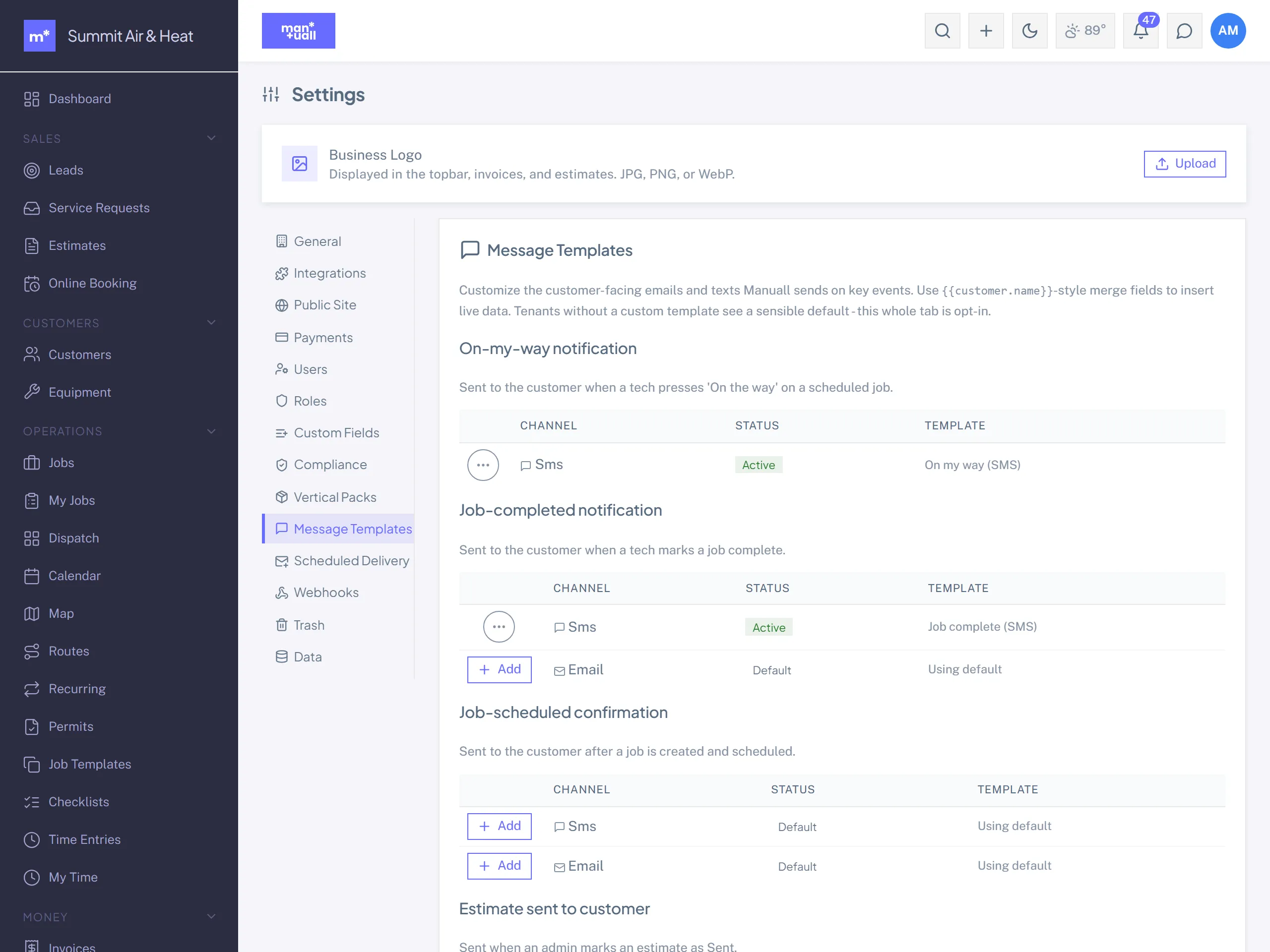
Manuall has two template families: Message templates (the SMS and email Manuall sends customers) and Reply templates (quick-replies for chat and the portal inbox). Job templates are a separate thing; see Job Templates.
Message templates
Pre-written copy with merge fields. The merge engine is Mustache-flavored: {{dotted.path}} is replaced with the value, whitespace inside the braces is fine, and a missing field renders as a clean blank rather than leaving {{job.eta}} on screen.
The template kinds
Each kind fires on a specific event and supports specific channels:
| Kind | Fires when | Channel |
|---|---|---|
| On-my-way | A tech presses "On the way" on a scheduled job | SMS |
| Job scheduled | A job is created and scheduled | SMS + Email |
| Job completed | A tech marks a job complete | SMS + Email |
| Estimate sent | An admin marks an estimate Sent | |
| Invoice sent | An admin marks an invoice Sent | |
| Payment received | An invoice payment succeeds | |
| Refund notice | A card payment is refunded (a lost chargeback sends nothing; the bank already told them) | |
| Payment failed notice | A bank debit bounces, or a saved card is declined on auto-pay |
Merge fields
The fields available depend on the kind (the editor flags a field that the kind doesn't expose). The common ones:
| Field | Resolves to |
|---|---|
{{customer.name}} |
The customer's display name. |
{{customer.email}} / {{customer.phone}} |
Their primary email / phone. |
{{business.name}} |
Your business name. |
{{business.phone}} / {{business.address}} |
Your phone / address. |
{{job.number}} |
Job number (for example JOB-00042). |
{{job.scheduled_start}} |
Scheduled start, in your timezone. |
{{job.tech_name}} / {{job.eta}} |
The en-route tech and arrival window (on-my-way). |
{{estimate.number}} / {{estimate.portal_url}} |
Estimate number / portal review link. |
{{invoice.number}} / {{invoice.total}} / {{invoice.portal_url}} |
Invoice details / portal pay link. |
Merged values in email are HTML-escaped, so a customer name with an & or a stray tag can't break the layout.
Reply templates
Quick-replies for team chat and the portal-message inbox. Click one to drop it in the compose box, tweak, send.
Examples:
- "On my way, see you in about 15 minutes."
- "We'll need to reschedule, let me check availability."
- "Approved, please go ahead with the work."
Editing a template
- Settings -> Templates -> the Message or Reply tab.
- Click a template to edit, or + New Template.
- Body and merge fields. A subject too, for email kinds.
- Save. It's active immediately.
SMS tips
- Keep it short, ideally one 160-character segment.
- Identify yourself by name; customers ignore unknown numbers.
- Don't add a "Reply STOP" footer; the carrier handles opt-out.