
Mobile Job Execution
What a tech does in the field: check in, do the work, log parts and time, capture a signature.
What happens between a job being scheduled and the customer paying is the work the tech does. This one's for technicians, written for the phone in your pocket.
Read this before your first real job.
Run the flow on a fake customer first if you're new. Better to fumble Check In on a fake job than in front of a paying customer.
Before you leave the shop
- Open My Jobs. Confirm today's list. If a job is missing or doubled, ping the dispatcher in chat now, not on the customer's porch.
- Charge your phone. Dead battery means no Manuall and no time card.
- Stock your truck. Check the parts each job needs and grab what you don't already carry.
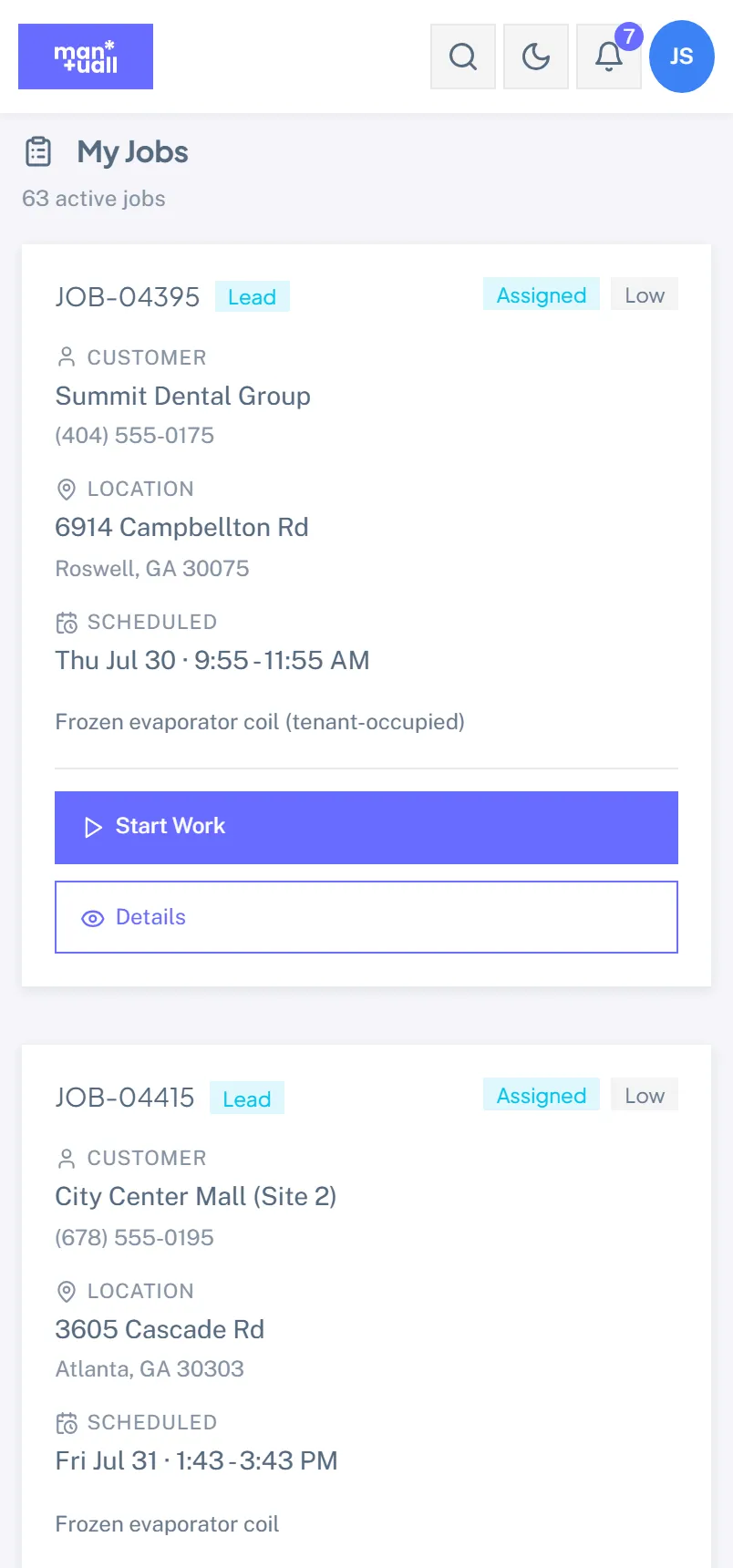
Arriving on site
- Park.
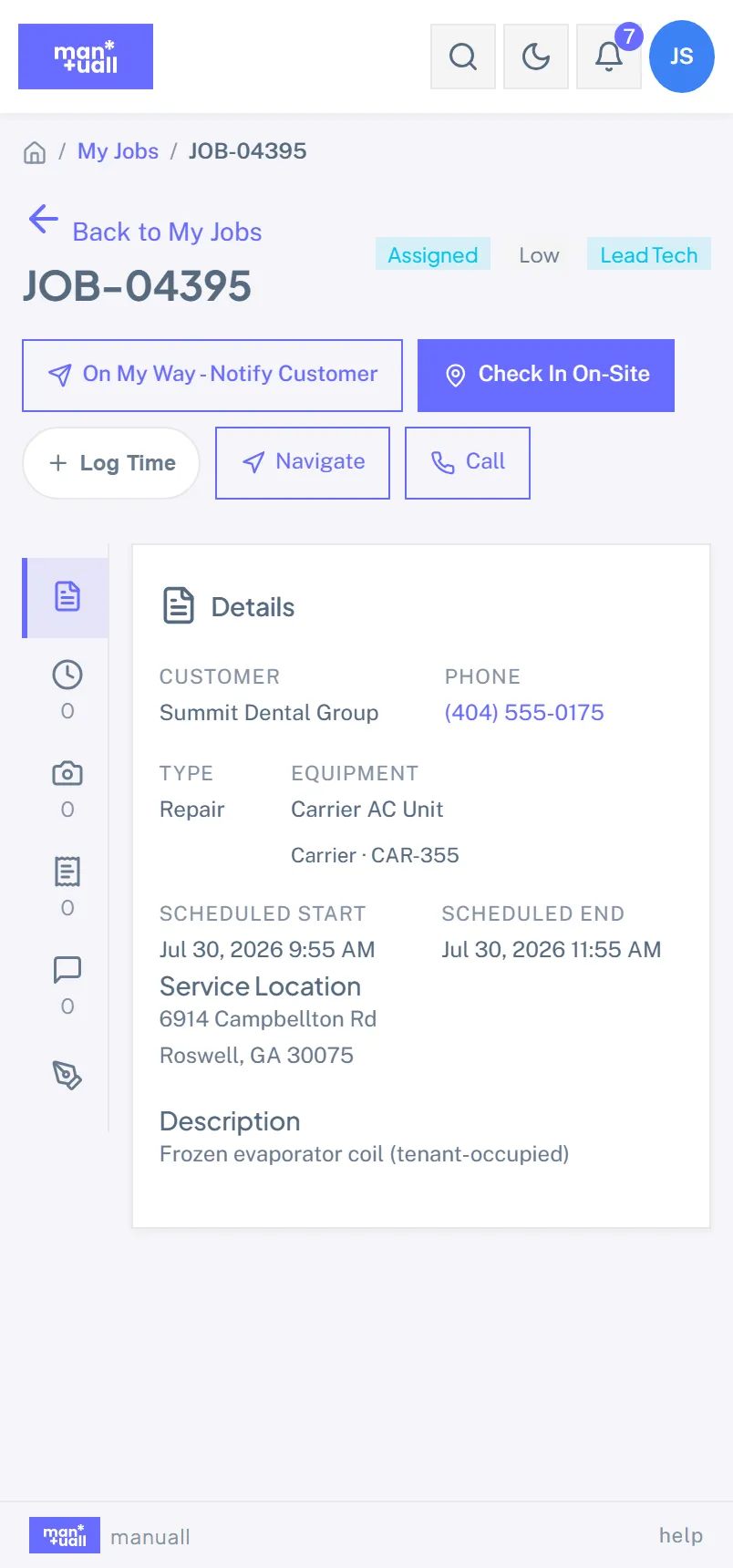
- Open the job from My Jobs.
- Read the description and any customer notes.
- Tap Check In.
- GPS captures your coordinates and accuracy.
- The timestamp records the moment.
- If your shop has the "tech on site" text enabled, the customer is notified.
- The job flips to In Progress.
GPS denied?
Manuall still checks you in, just without coordinates. Your time card still works; only the arrival location is missing. If your shop uses location for payroll, ask your dispatcher about granting GPS permission.
Doing the work
Parts
- Tap + Use part.
- Search by part number or name.
- Set the quantity.
- Save. The part lands on the job's line items and the truck's stock is debited.
Photos
- Tap + Add photo.
- Camera or library, optional caption.
- Save. It uploads, or queues if you're offline.
Photos show on the job detail, the customer's portal record, and they print on the invoice if your template includes them.
Checklist (if attached)
- Open the Checklist tab.
- Walk it item by item, marking each pass or fail.
- On a fail, add a note about why.
- Save. The completed checklist becomes part of the record.
Wrapping up
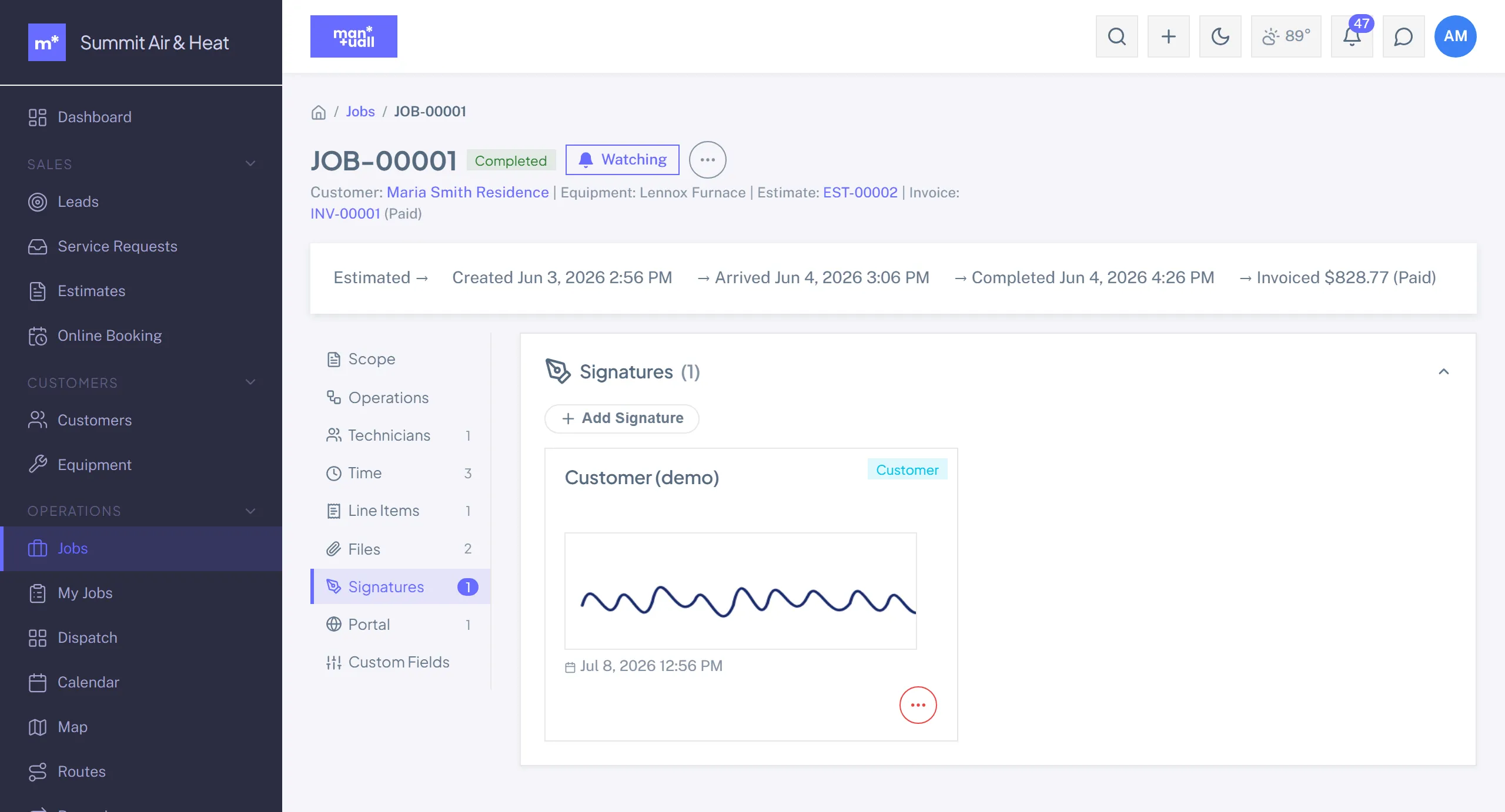
- Capture signature. Tap Capture Signature, hand over the phone, the customer signs with a finger or stylus, Save.
- Optional: review time and parts with the customer. Transparency here kills most post-job disputes.
- Tap Check Out. GPS and a timestamp are captured and the timer stops. (Check Out doesn't finish the job on its own.)
- Tap Mark Complete (or Sign Off). That closes out the visit.
- Quote anything you found. Tap Quote More Work and add lines off the price book for work the customer is not having today. It goes out as a proper estimate they approve in the portal, where a deposit can be taken. Prices come off the catalogue, never typed, because a number written in a crawlspace is the one that turns up wrong three weeks later.
- Collect, if your shop lets you take money. Tap Collect Payment for what the visit comes to, then take cash or a check, or text a card link. Skip it and the office bills the way it always did.
What happens after
Out of your hands, but worth knowing:
- Your time entry is recorded from the timer.
- Manuall computes the job total from line items, parts, and tax.
- If a deposit was collected, the balance invoice is the difference.
- The office generates the invoice (a Draft) from the job, then reviews and sends it. If you already closed out on site, the invoice exists with the payment against it and there is nothing to chase.
- Cash and cheques you took in the field land on the office's Payments page under a Field filter, so somebody reconciles what is in your truck against what the system thinks you collected. Have the money on you.
- If a survey campaign is set up, the customer gets a satisfaction survey.
If you have to abandon a job mid-flight
Customer not home, wrong address, bigger problem than expected:
- Tap Check Out normally so the time still counts.
- Set the status to On Hold or Follow-Up (or Cancelled if it's off).
- Add a note about what happened.
- Tell your dispatcher in chat. They reschedule from their end.
Offline mode
Read this once, thank yourself the day signal disappears.
- Every button still works. Check in, check out, log parts, add photos, capture signatures. They queue on the device.
- The topbar shows the queue count. "3 queued" means three actions are waiting.
- When signal returns, it syncs on its own. The count drops to zero and you get a "Synced 3 actions" toast.
- If your session expired offline (it's been 12+ hours), the topbar shifts to "Sign in to sync 3 actions." Sign in, the queue drains. Nothing is lost.