
Install the Mobile App
Add Manuall to your phone's home screen. Works on iOS and Android. Includes the offline action queue.
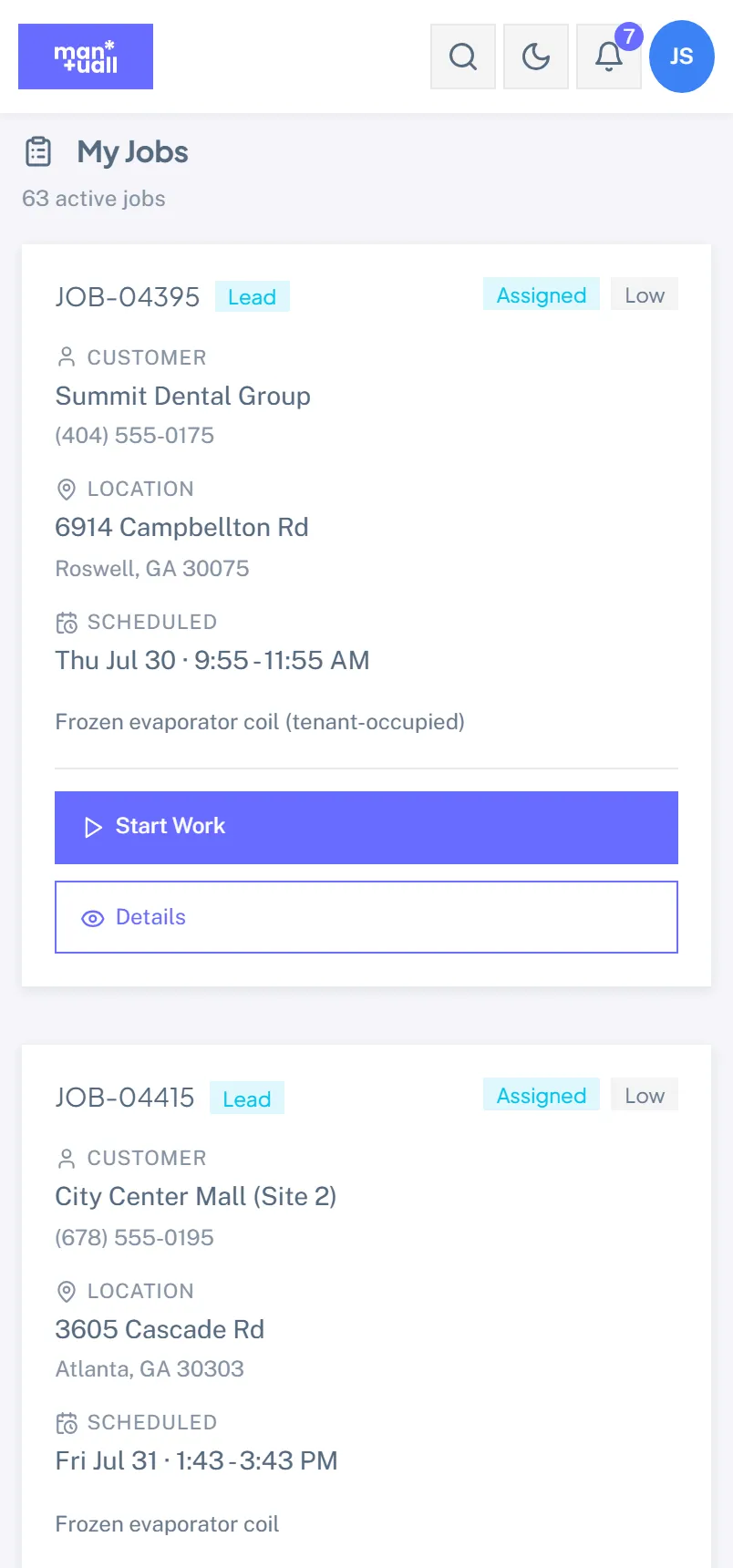
Manuall lives on your phone's home screen. Once installed it opens like any other app, works offline, and updates itself when we ship a new version. Nothing to download from the App Store or Play Store.
iPhone & iPad (Safari)
- Open Safari and go to your Manuall URL.
- Sign in.
- Tap the Share icon in the toolbar (a square with an up-arrow).
- Scroll down and tap Add to Home Screen.
- Tap Add in the top right.
- Find the Manuall icon on your home screen and open it. It runs full-screen, no address bar.
On iPhone, install from Safari.
Other iOS browsers don't expose Add to Home Screen. If a tech usually runs Chrome on their iPhone, switch to Safari for the one-time install.
Android (Chrome)
- Open Chrome and go to your Manuall URL.
- Sign in.
- Tap the kebab menu (top right).
- Tap Install app (or Add to Home screen on older Chrome).
- Confirm. The Manuall icon lands on your home screen and in the app drawer.
After a couple of visits, Chrome often pops its own install prompt. Tapping that is the one-step path.
Desktop (Chrome or Edge)
Handy for office staff who want Manuall in the dock or taskbar without a browser tab. Installing adds a launcher icon and opens Manuall in its own window.
- Open Manuall in Chrome or Edge.
- Look for the small install icon at the right end of the address bar (a screen outline with a down-arrow).
- Click it, then click Install.
What you get
- Full-screen mode. No browser address bar, no tabs.
- Home-screen icon. Branded, looks like any other app.
- Offline queue. Check-ins, status changes, time entries, signatures, and photo uploads queue securely on the device when the signal drops, then sync on their own when it returns.
- Push notifications. Opt in for assignment alerts, new chat messages, and customer feedback. Per-user toggles live in Profile -> Notifications.
- Automatic updates. The next time you open the app after a release, you have the new version. No App Store, no Play Store.
The offline queue
Your work is safe, even where the signal isn't.
Check in to a job, log time, capture a signature, or upload a photo while offline and those actions queue on your device. The topbar shows a count of queued items. When the signal returns they sync automatically, and duplicates can't happen even if you keep tapping.
Try it:
- Open Manuall on your phone.
- Turn on airplane mode.
- Open a job from My Jobs and tap Check In.
- The status update queues. The topbar reads "1 queued".
- Turn airplane mode off. The queue drains within seconds and the counter clears.
If your session expires while you're offline
Manuall sessions last 12 hours. If you stay offline through a long shift and the session times out, the queue keeps holding your actions and the topbar switches to "Sign in to sync N actions". Sign back in and the queue finishes. Nothing has to be redone.
If the app feels stale after a release
Rare, and easy to fix. Fully close the app (swipe it away in the app switcher), then open it again. The latest version loads on the next open. If that doesn't do it, clearing your browser's cache for the Manuall URL forces a fresh load.