
Lead to Cash
The whole revenue cycle, from an inbound lead to collected payment, in one worked example.
Lead-to-cash is the whole revenue cycle: an inquiry becomes a prospect, a prospect becomes a paying customer. Manuall has a feature for every step. This walkthrough follows the full chain with one example.
The cycle at a glance
- Capture. A lead arrives: a website form, a Google ad, a referral, a returning customer's portal request, or the phone ringing.
- Qualify. A salesperson works it: calls, notes, follow-ups.
- Quote. Turn the lead into a customer, then build an estimate from the Price Book.
- Approve. The customer says yes (portal, phone, or paper). The estimate goes Approved.
- Schedule. Convert the estimate to a job. Pick a slot.
- Execute. The tech runs the job: parts, time, signature.
- Invoice. Job completion generates the invoice.
- Collect. The customer pays through the portal with Stripe, or you log a check or cash payment.
- Reconcile. The payment posts, the balance clears, and it optionally syncs to QuickBooks.
- Feedback. A survey fires, and happy customers get routed to a Google review.
One example: Joe Smith needs a new water heater
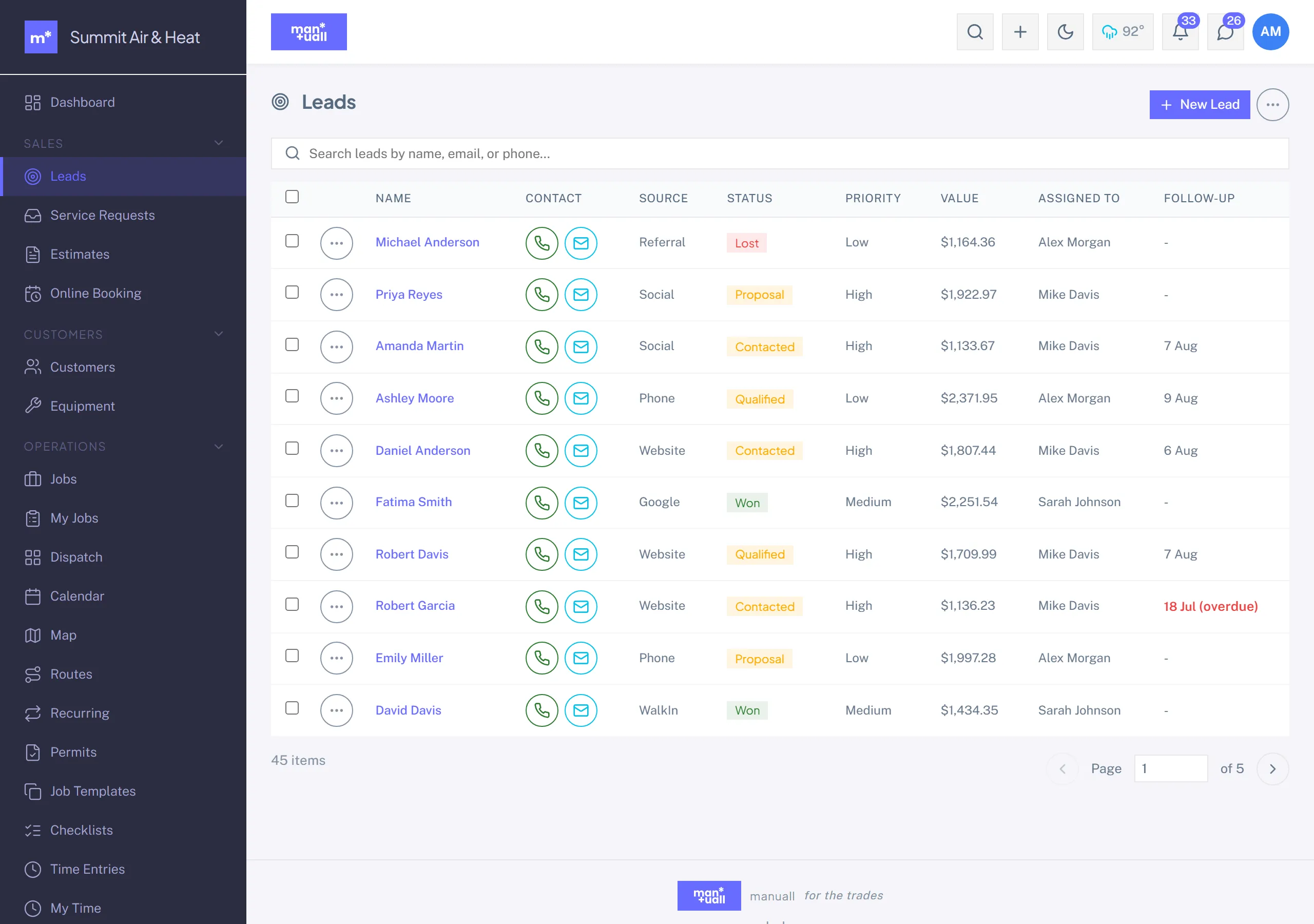
Step 1: The lead
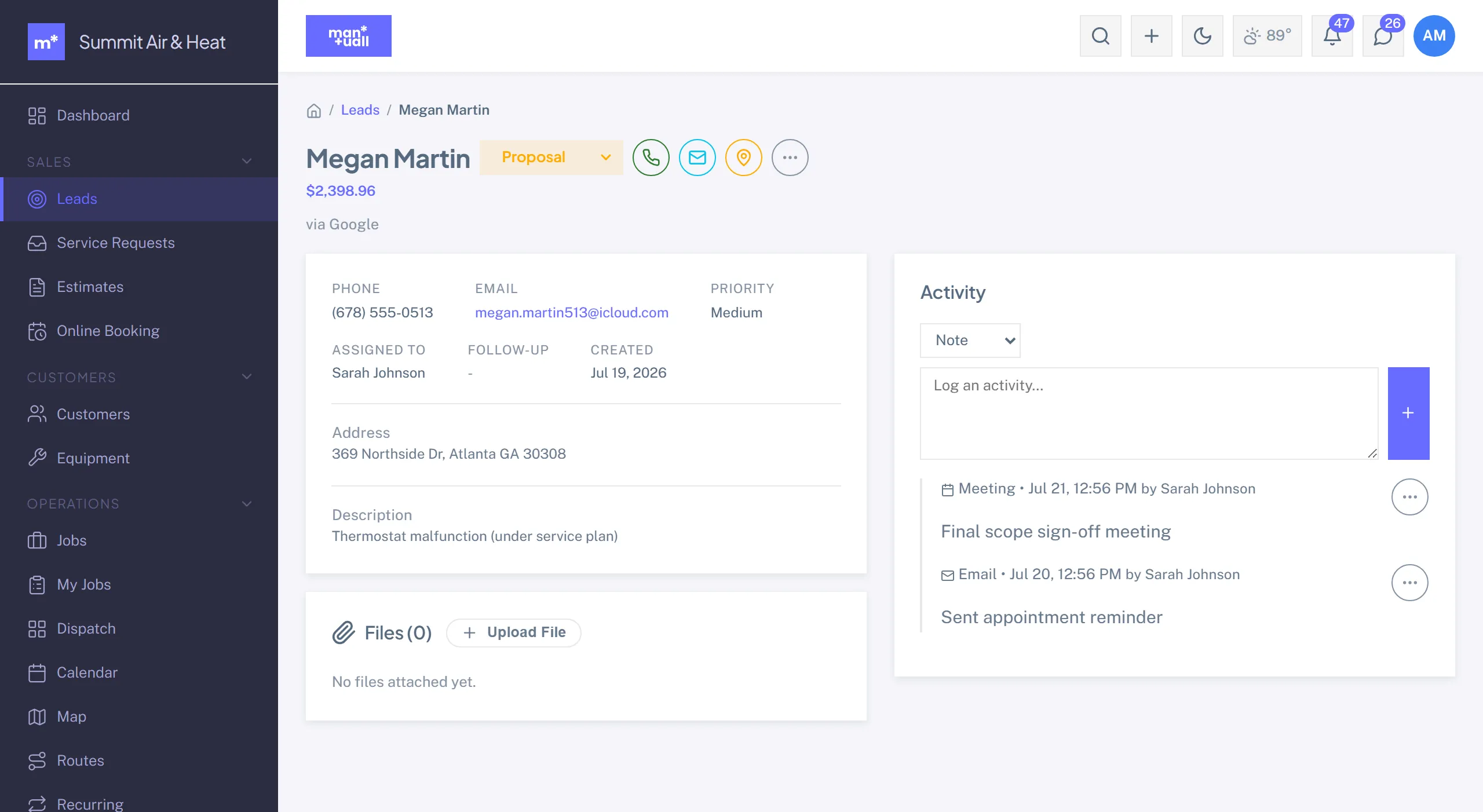
Joe fills out your public booking form (/book/your-code). His details land in Leads with source public_booking.
- Sidebar -> Leads.
- Click Joe's row. The Lead detail opens at status New.
- Move it to Contacted and log your first activity: Activities -> + Activity -> Call, "Spoke to Joe, no hot water, wants a quote ASAP, home Thursday after 2pm."
- Set a follow-up date a couple of days out.
Step 2: The quote
Joe books a quote visit. You look at his water heater, take measurements, head back. Now:
- Lead detail -> Convert to Customer. That creates Joe's customer record and marks the lead Won.
- Open Joe's customer -> Estimates tab -> + New Estimate.
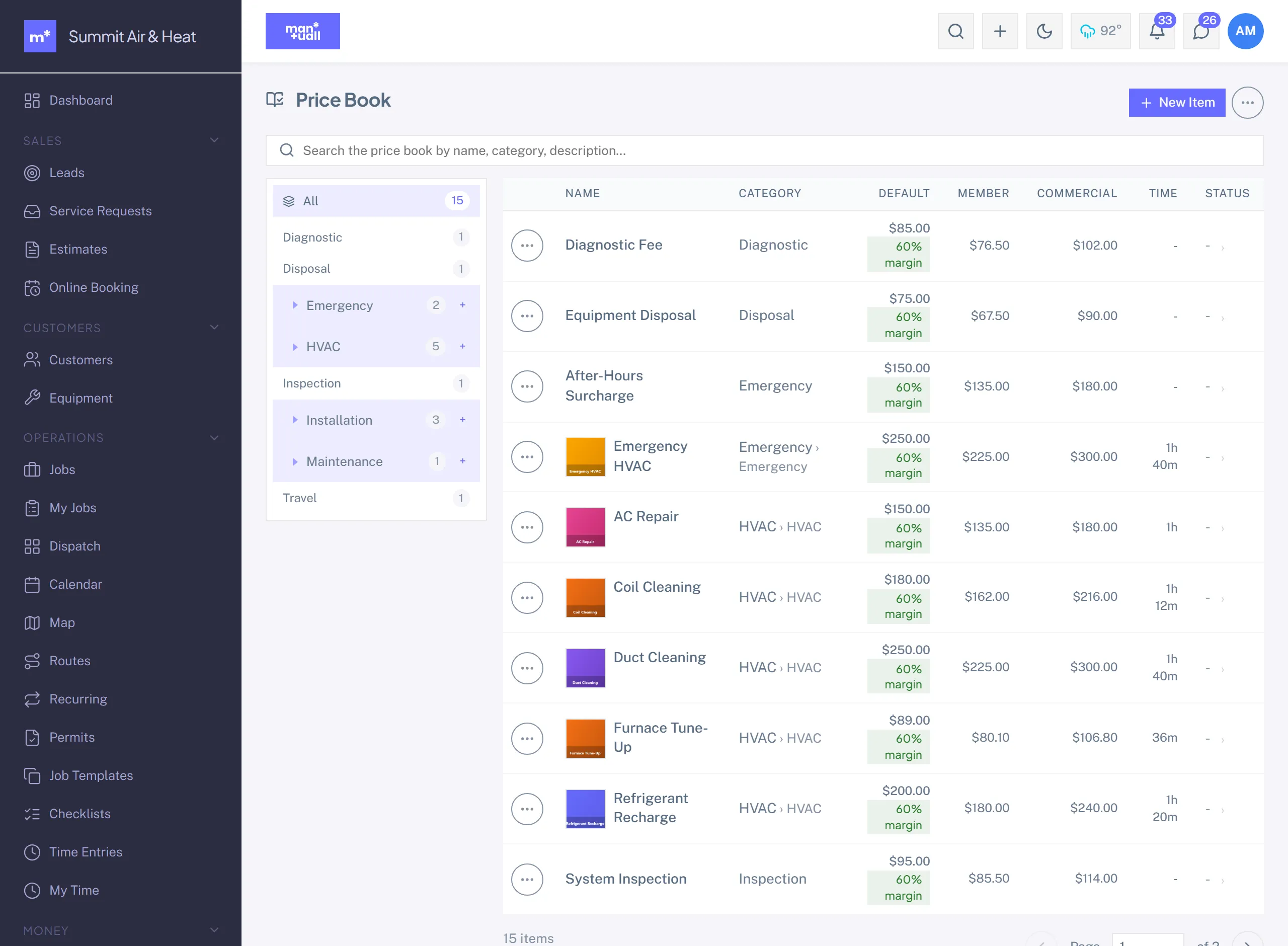
- Add line items from the Price Book picker:
- Service: "50-gallon gas water heater install"
- Part: the brand and model
- Optional: an earthquake-strap kit if your code requires it
- Set the tax rate (your default, unless Joe is tax-exempt).
- Set Deposit % to 20%. Anything over about $1,500 usually carries a deposit; it locks in the date.
- Save -> Send. Joe gets an email with a portal link.
Step 3: Approval and deposit
Joe opens the portal email, sees the estimate, and hits Approve & Pay $X Deposit. Stripe Checkout opens, he pays, and Manuall:
- Marks the estimate Approved.
- Mints a deposit invoice (Type: Deposit, one line).
- Records the payment when Stripe confirms.
- Marks the deposit Paid and records it as collected on the estimate.
You get a "deposit collected" notification.
Step 4: Schedule the job
- Estimate detail -> Convert to Job.
- Pick a Job Template if you have one (the Plumbing pack ships a "50-gal Gas WH Install" template with a 4-hour duration and the "Plumbing License" skill).
- Click Suggest Slots. The finder ranks open windows on your licensed-plumber techs.
- Pick Thursday after 2pm. The job is now assigned.
- Save. Joe gets a confirmation text if your "Job scheduled" template is on.
Step 5: Tech executes
Thursday at 2:15:
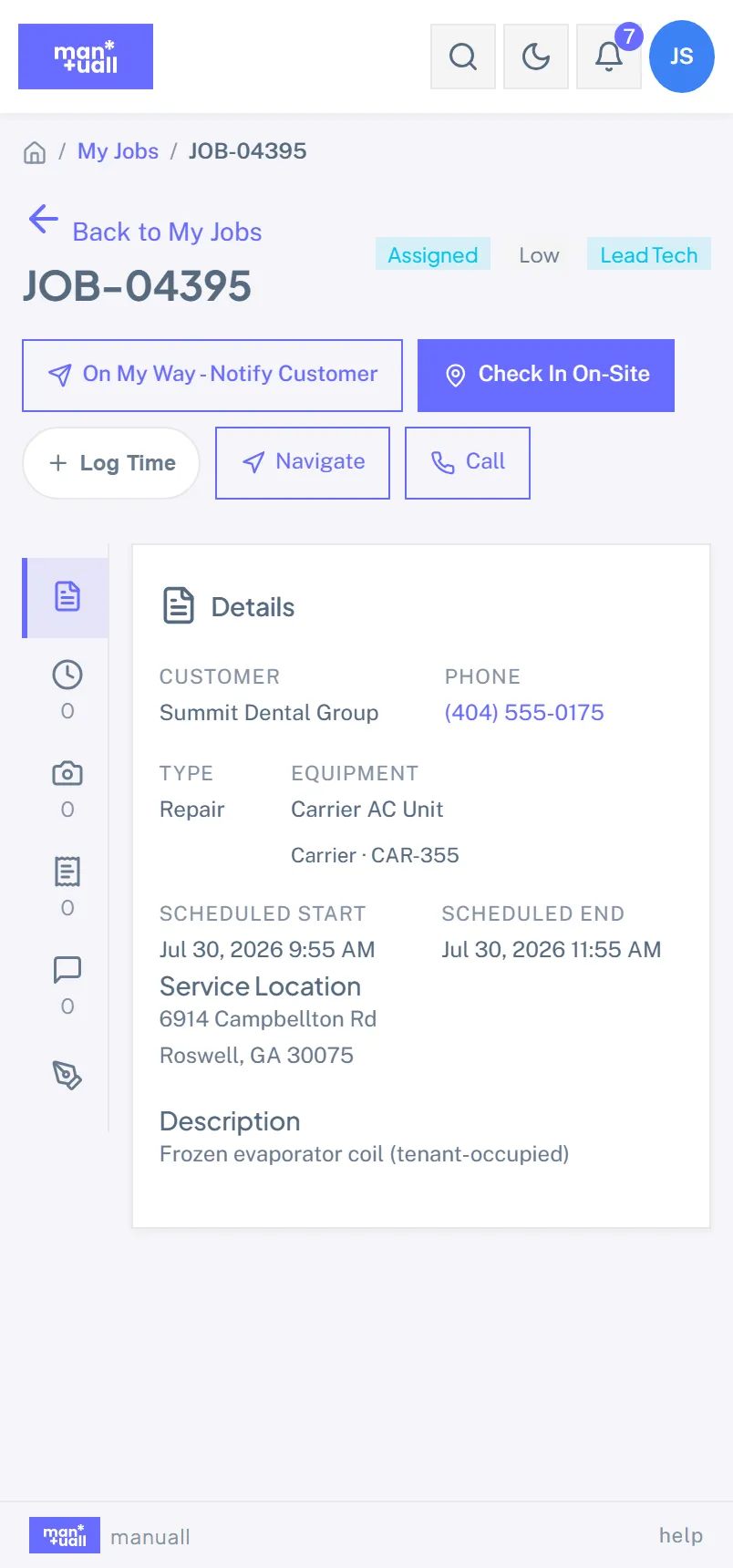
- Tech opens My Jobs, sees Joe's job.
- Taps On My Way (Joe gets a heads-up text), drives over, taps Check In. GPS drops, timer starts, job goes In Progress.
- Does the install. Logs the water heater part (debits the truck).
- Snaps a before and after photo.
- Walks the "Water heater install QC" checklist.
- Has Joe sign on the phone.
- Taps Check Out, then Mark Complete.
Step 6: Invoice and payment
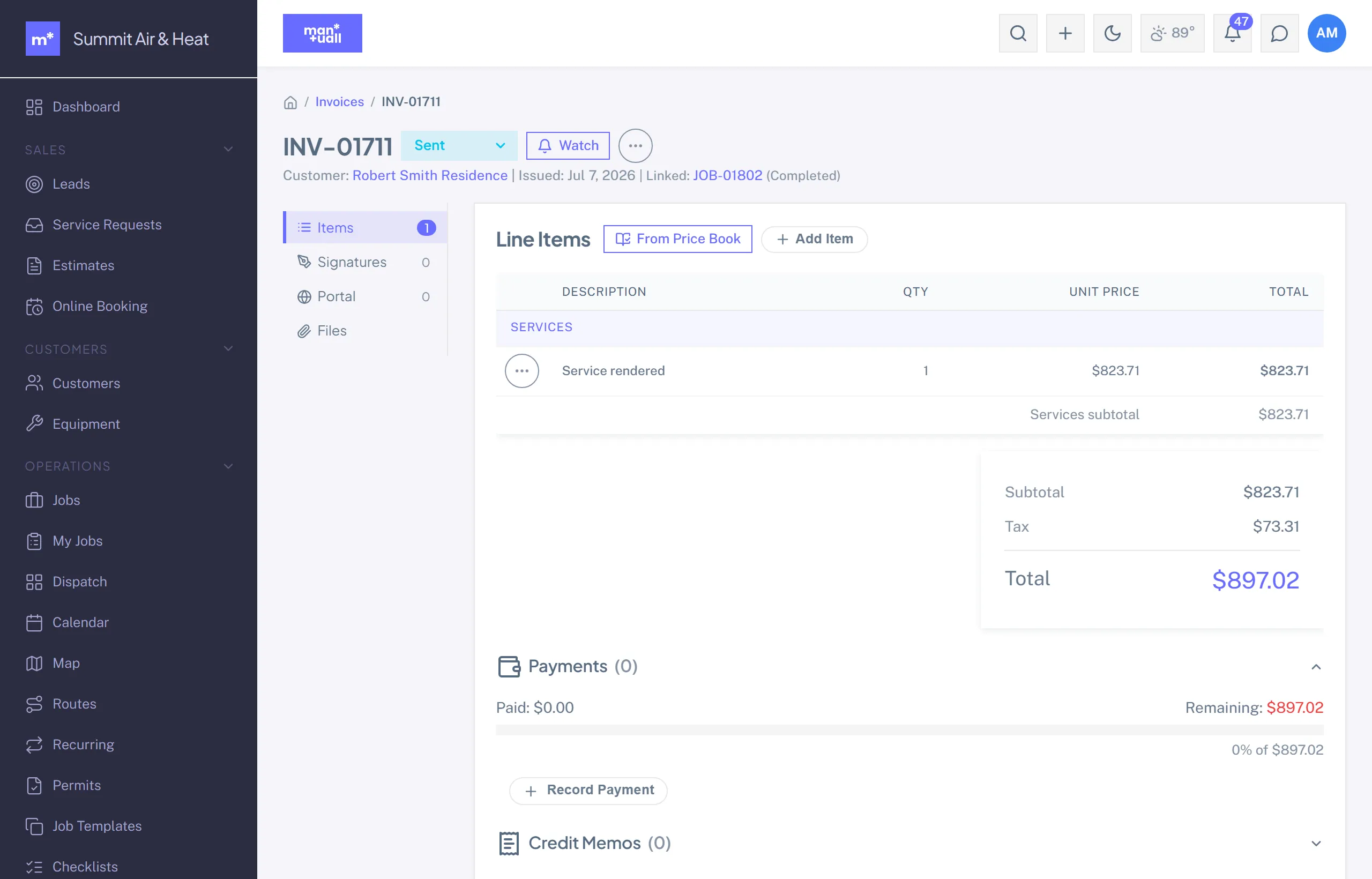
From the completed job, Generate Invoice computes:
- Estimate total: $1,895.00
- Tax: $150.05
- Subtotal: $2,045.05
- Less deposit collected: $409.01
- Balance due: $1,636.04
The balance invoice opens in Draft. Review it, adjust if anything changed, hit Send. Joe pays from the portal. Once Stripe confirms, it flips to Paid.
Step 7: Reconcile
With QuickBooks connected, the invoice and payment sync to QBO. Card payments run about 3.4% per transaction, all-in; Stripe deposits the net to your bank on its own schedule, so reconcile your Stripe payout statement against the synced payments. Without QuickBooks, you'll do this monthly from the CSV export.
Step 8: Feedback
If you have a survey campaign with the trigger "Job completed," a post-job CSAT survey fires automatically. Joe rates the visit. A high Happiness score (at or above your threshold) sends a follow-up email asking for a Google review. The click runs through /r/{token} so you can measure review-request-to-click rate.
What Analytics shows for this one job
| KPI | Tile moves by |
|---|---|
| Revenue (this period) | + $2,045.05 |
| Average invoice value | recomputed |
| Estimate-to-job conversion rate | +1 in the period |
| Days to invoice | 0 (auto on completion) |
| DSO | 0 (paid same day via Stripe) |
| Lead pipeline -> Won | +1 |
| CSAT (after the survey responds) | +1 response |
What can break (and what to do)
| Symptom | Cause | Fix |
|---|---|---|
| Joe didn't get the estimate email | Spam filter or bad address | Resend from the estimate detail; verify the email; copy the portal link and text it. |
| Stripe payment failed | Card declined, 3DS not met | Joe retries; if it persists, log a manual payment (cash, check, transfer) and mark it paid. |
| Tech can't check in | GPS denied or no signal | Check in anyway: no GPS means no coords recorded; no signal means it queues offline and drains later. |
| Invoice math looks off | Tax change or deposit ratio | Open the invoice; the breakdown shows the calculation. Adjust before sending. |
| Customer disputes the price | Scope changed mid-job | Issue a Change Order, don't re-edit the invoice. The original number stays intact for the audit trail. |