
Invoices
One-off and job-linked invoices. Stripe Checkout, partial payments, print to PDF.
Invoices are the bills you send. One can stand alone, generate from a completed job, consolidate several jobs, or come off a recurring schedule. For the full payment flow (Stripe Checkout, partial payments, refunds), see Invoicing & Payments.
Where invoices come from
- Job completion: from a completed job, Generate Invoice builds a Draft from the work actually done (line items plus parts used, falling back to the estimate, then to logged labor).
- Deposit on approval: when an estimate with a deposit is approved on the portal.
- Manual: Sidebar -> Invoices -> + New.
- Recurring: from a Recurring Invoice schedule.
- Consolidated: Customer detail -> Jobs tab -> tick several -> invoice them together.
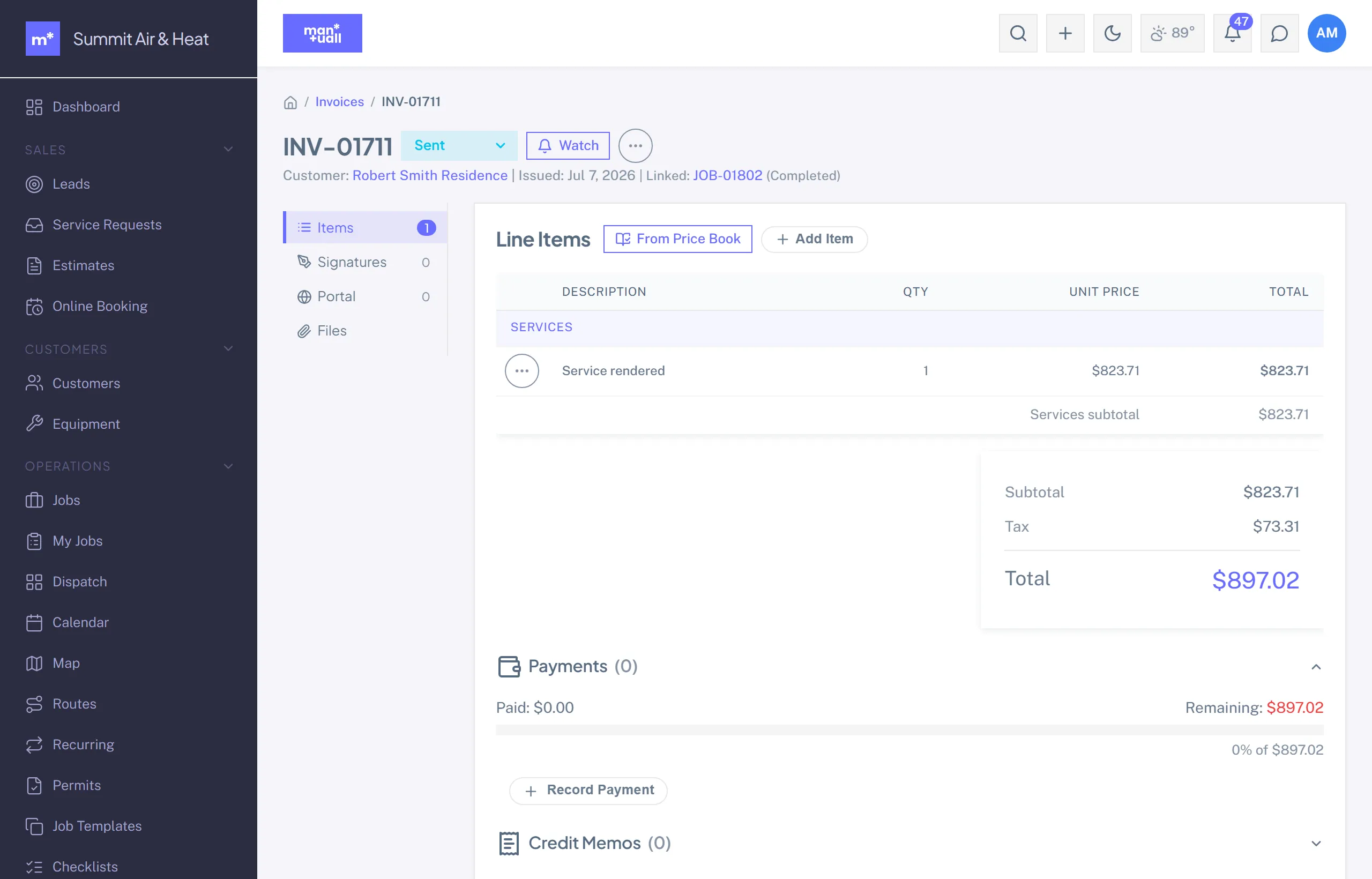
Fields
- Customer, with optional Job links.
- Line items: from the job, the Price Book, or custom.
- Tax rate.
- Due date (Net 30 by default).
- Message to the customer.
- Type: Standard / Deposit / Final / Other.
Status
The normal path is Draft -> Sent -> Partial -> Paid. An unpaid invoice past its due date goes Overdue, and the collections states (Disputed, Collections, Written Off) are there for the ones that go sideways.
Recording payment
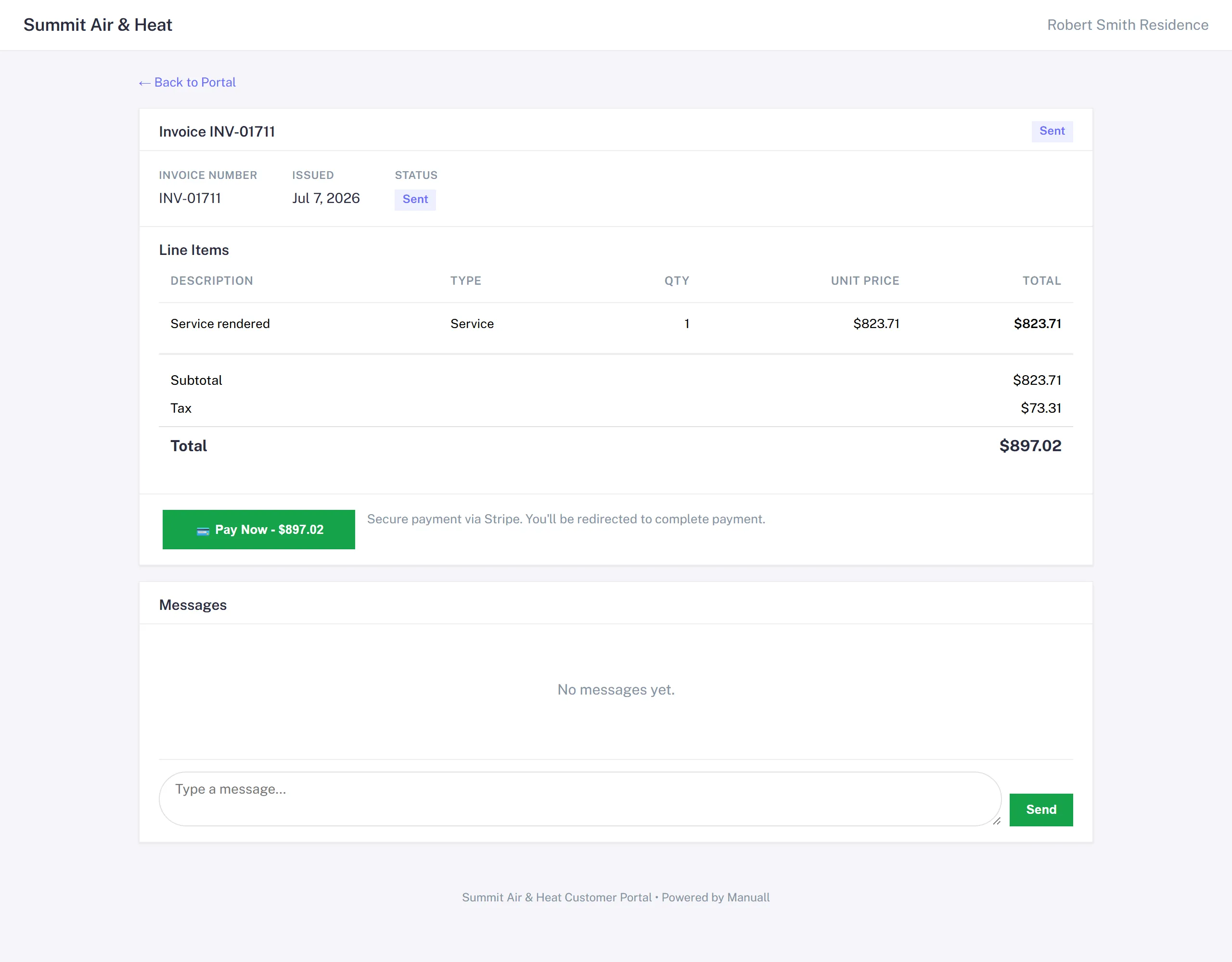
- Stripe Checkout: the customer pays from the portal and Stripe confirms the charge.
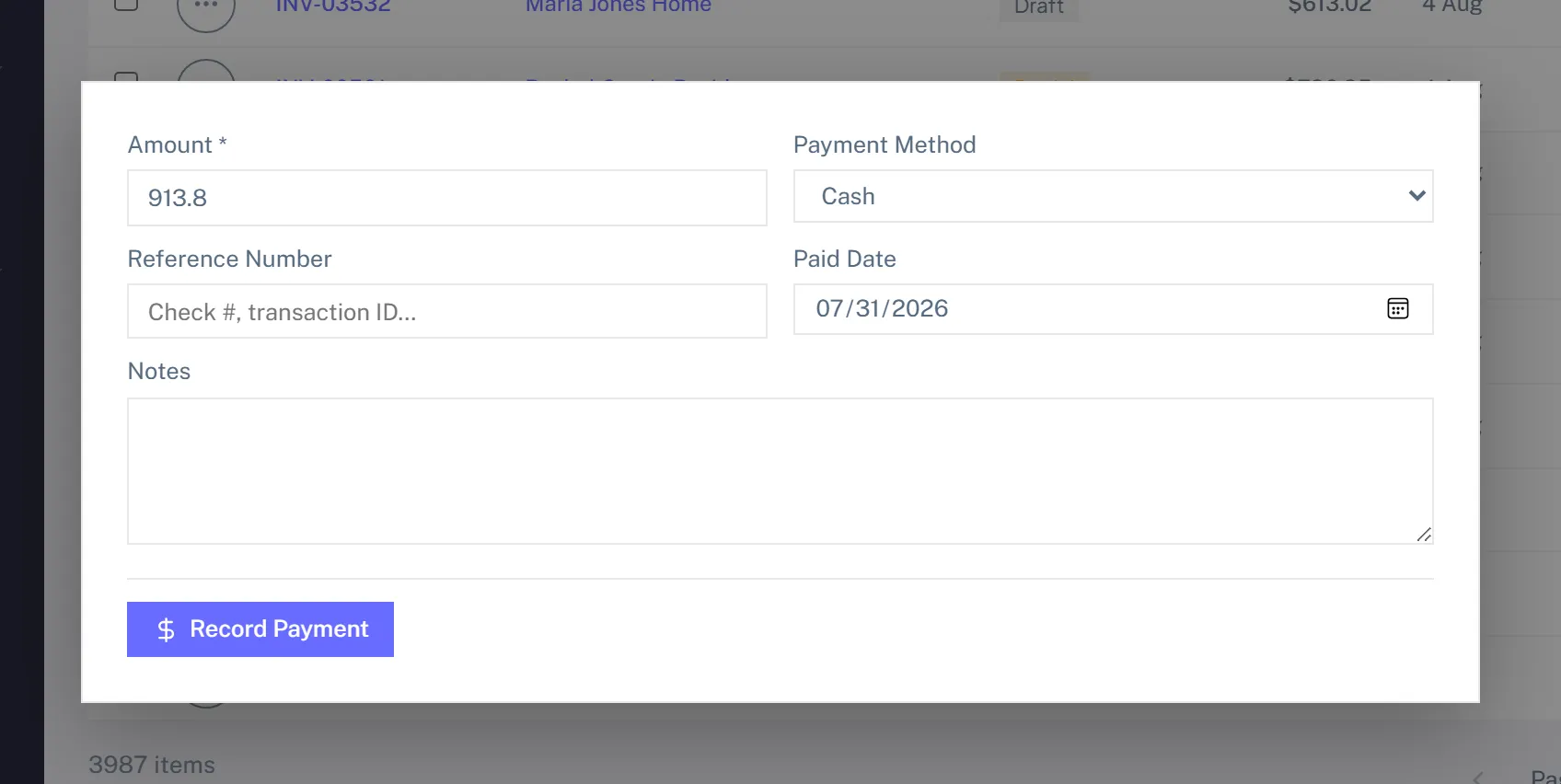
- Manual: Invoice detail -> + Payment. Date, amount, method (Cash / Check / Bank Transfer / Other).
- Bank debit: a customer who pays by bank from the portal shows as "bank payment in progress" on the invoice until it clears, usually within 4 business days; it flips to Paid on its own, or you're told if the bank returned it.
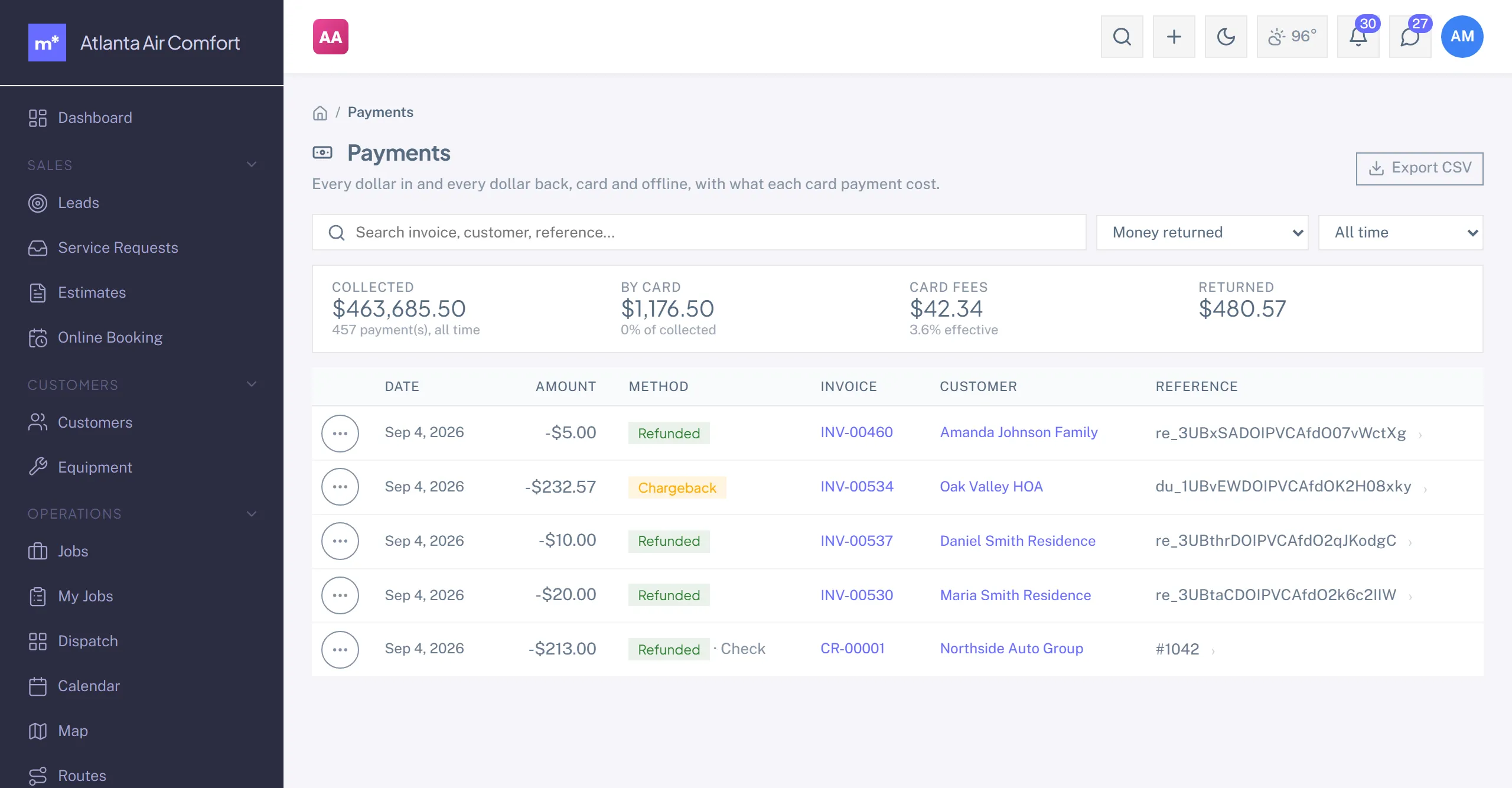
- Refunds: the payment row's menu on the invoice, or the Payments page. Full or partial; the invoice stays Paid and a credit memo is booked for you.
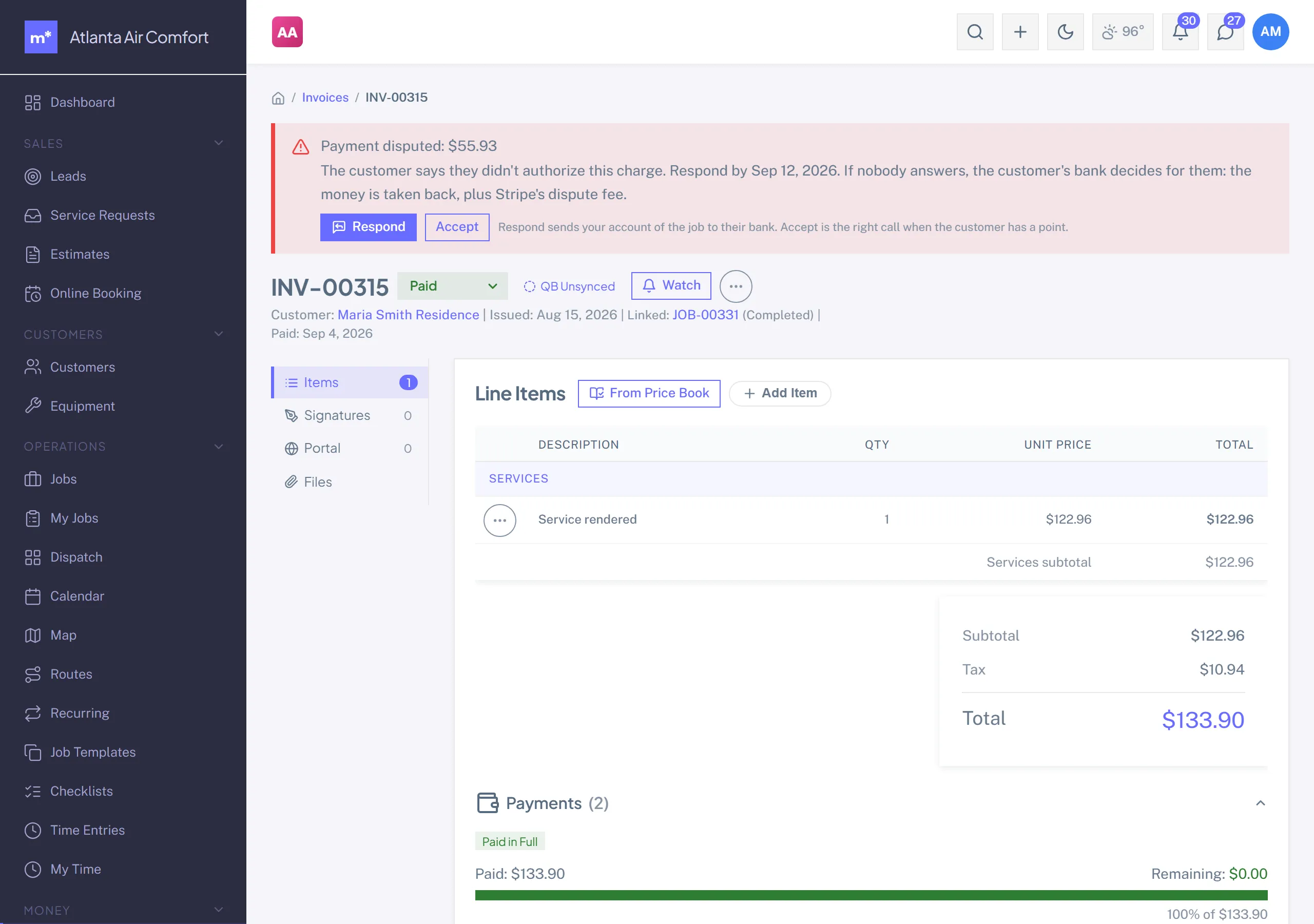
- Chargebacks: a red banner with the deadline; respond with your account of the job (Manuall attaches the signature, photos and invoice details) or accept.
Partial payments
An invoice can take several payments. It flips to Partial on the first one and to Paid when the balance hits zero.
Print view
Standard template with your logo and business info. Print to PDF from the browser.
QuickBooks sync
If QuickBooks is connected, invoices and payments sync through the queue. See QuickBooks Online.
Plan tier
Invoices is on every plan.