
For Your Customers (Portal)
What your customers see: pay invoices, approve estimates, message you, book service.
For CustomerCustomers don't create accounts. They get links in your emails, texts, and printed invoices, and the link opens their portal directly. This page is what your customer experiences, so you can explain it back and field the questions you'll get.
Casey's evening
Casey is a homeowner. Acme HVAC came out last week. Tonight she gets two emails: an invoice and a follow-up estimate for a system replacement.
The invoice email
The subject is yours ("Your invoice from Acme HVAC"), the header carries your logo, and the body shows the job summary, the total, and a Pay Online button. Casey clicks.
The portal opens
No login screen. The token in the URL authenticates her. She lands on the invoice, your business name across the top, a clear summary of what's owed.
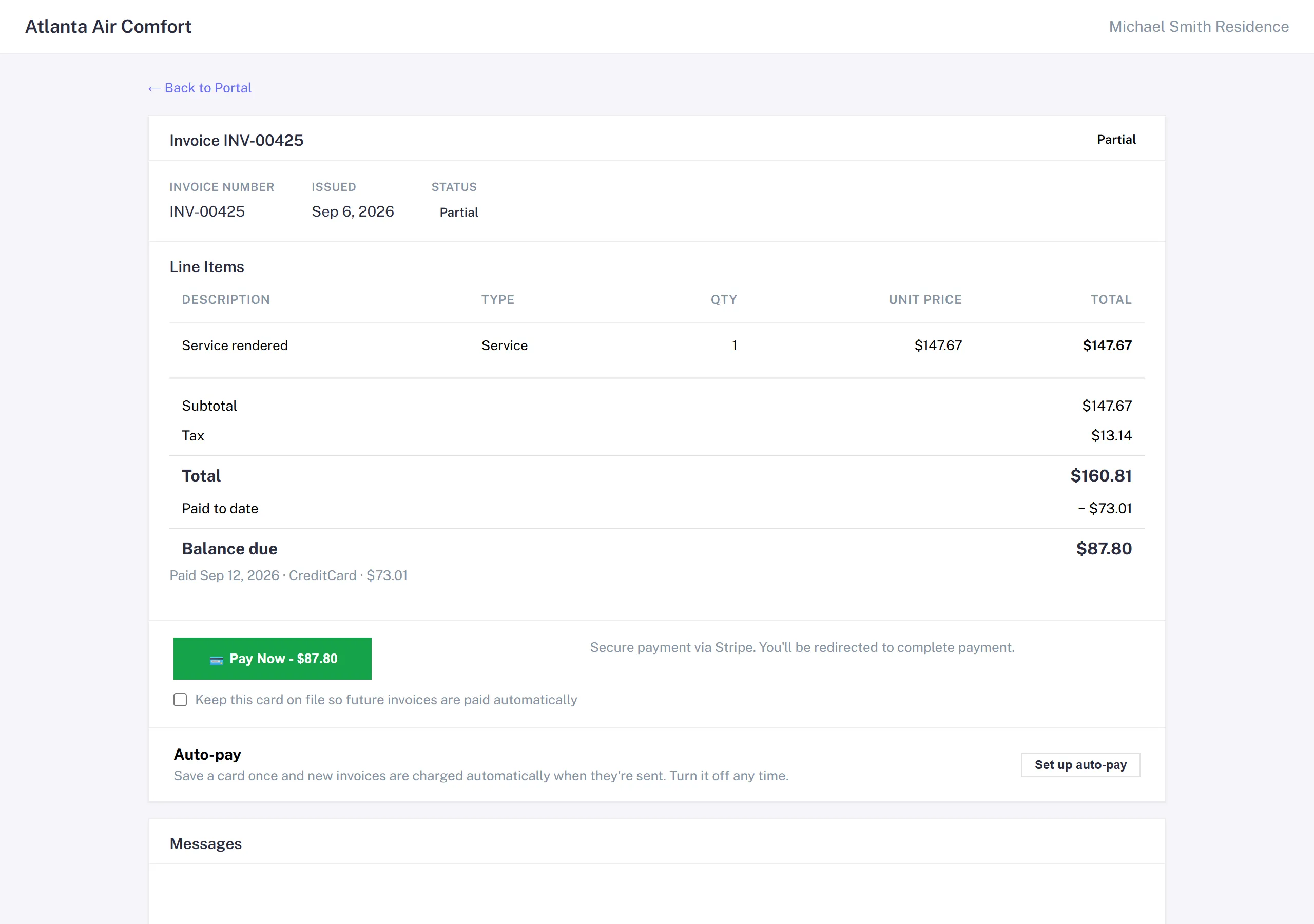
- Pay Now opens Stripe Checkout. She enters her card, pays, and the invoice flips to Paid. Manuall emails the receipt; her card statement shows your name and the invoice number.
- Apple Pay, Google Pay and Link appear automatically on mobile. Bank debit is there too: it shows as "processing" on her invoice until it clears, usually within 4 business days.
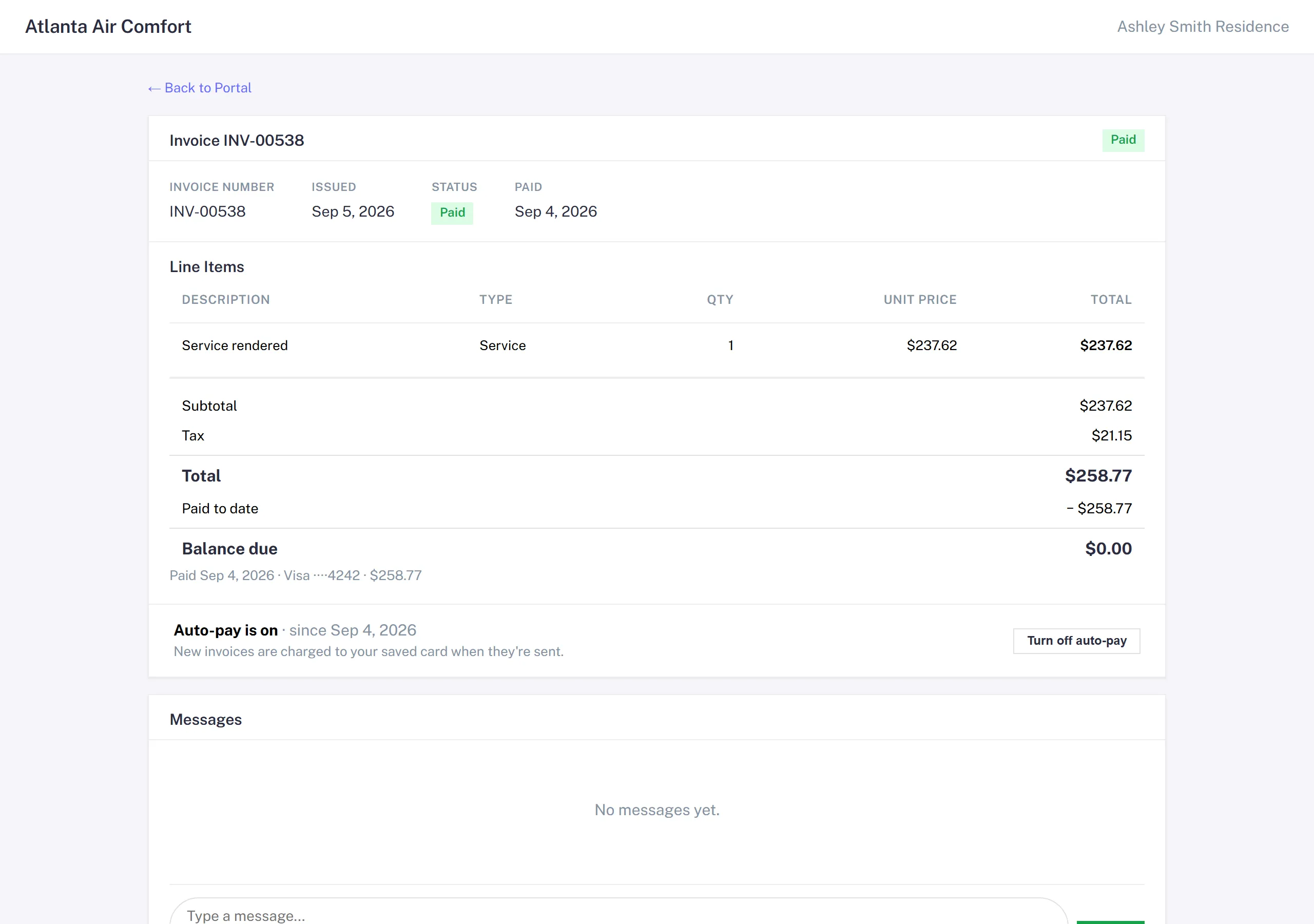
- A keep this card on file box on Pay Now enrolls her in auto-pay as she pays; the invoice page then shows it's on, with the off switch.
- Pay Now charges what's left on the invoice. A partial payment you record by hand (a check, a deposit) shows as a reduced balance, and she pays the rest.
The estimate
Back on the portal home is a second item: "Estimate EST-2088: New AC system." She opens it.
- Full line-item breakdown, tax, total.
- A big approve button. With a deposit set, it reads Approve & Pay $X Deposit.
- A decline button with an optional reason.
Casey approves with the deposit. Manuall mints a deposit invoice, runs her through Stripe Checkout for the deposit, and marks the estimate Approved with the deposit collected. Your team sees it on the dashboard.
The rest of what the portal does
| Customer can... | How |
|---|---|
| See every job done for them | Portal home shows a timeline of jobs with dates, descriptions, and the tech who ran each. |
| Pay an invoice | Open the invoice -> Pay Now. Stripe Checkout opens. |
| Approve or decline an estimate | Open the estimate -> Approve or Decline, with or without a deposit. |
| Submit a service request | Portal -> New request. Subject, description, urgency, optional photos. |
| Message you | Portal -> Messages. Lands in your Portal Messages inbox. |
| Book a slot | If you've enabled booking, limited to the availability you've published. |
| Complete a survey | The survey email arrives a day after the job is marked Complete. A 30-second submit. |
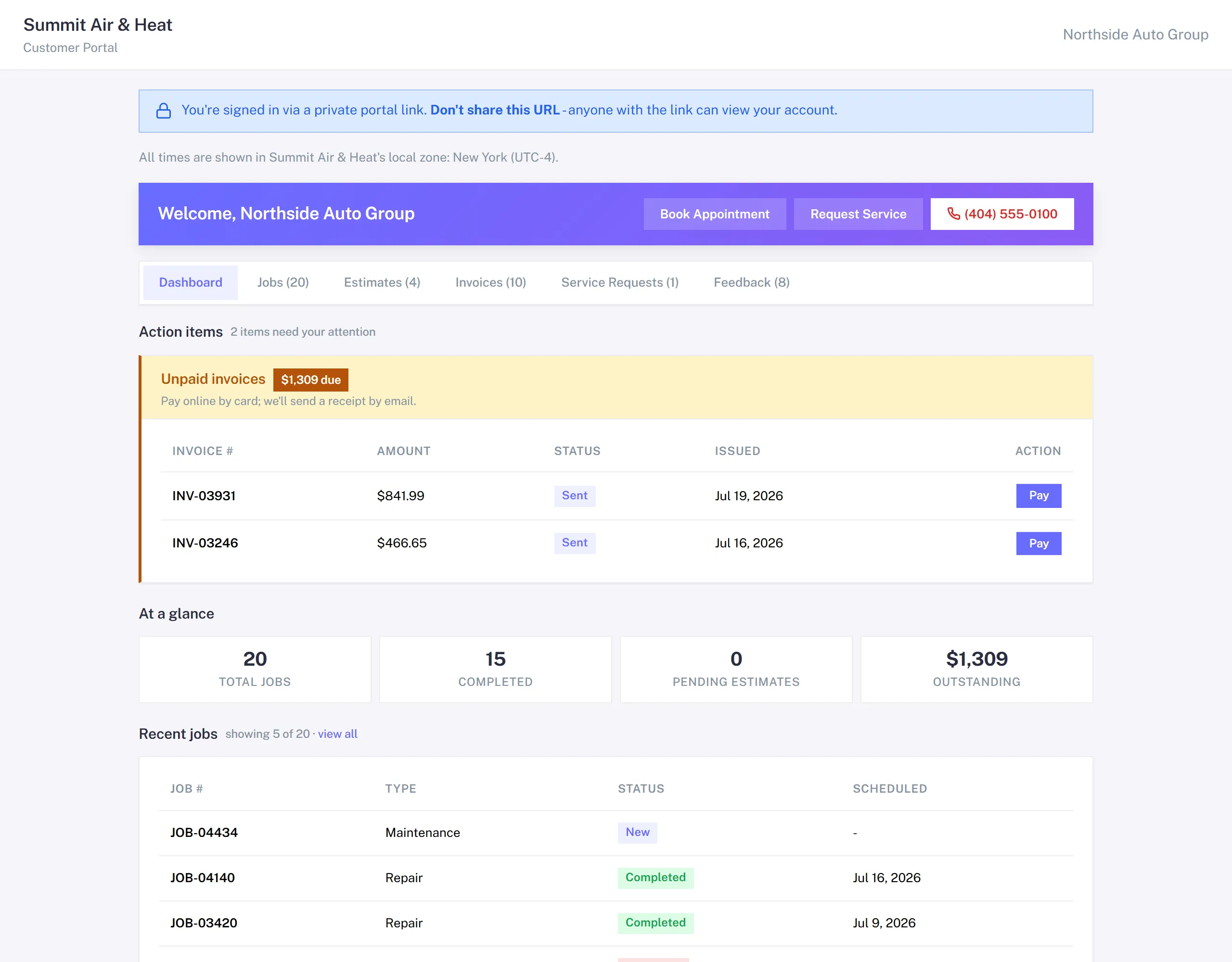
The portal home, at a glance. Casey lands on a branded page ("Hi Casey Martin, welcome to your Acme HVAC portal") that lists her items: an overdue invoice (INV-1042, $245.00, with a Pay now button) and an estimate waiting on her (EST-2088, $5,400.00, with an Approve & pay deposit button). No login, your logo up top.
How customers get in
No password. Each customer record carries a high-entropy token, and every customer-facing email Manuall sends links with it. Click, and they're in. The token is long enough to be unguessable in practice, and knowing one customer's token tells you nothing about another's.
If a customer thinks their email was compromised.
Customer detail -> Portal -> Rotate Token. Every previously shared link stops working immediately, and the next email carries the fresh token. Use it sparingly: it invalidates everything she has on file.
Your branding on the portal
- Your logo at the top.
- Your business name in the welcome line.
- A small "Powered by Manuall" badge in the footer, a trust signal that a real platform is handling payments and data.
What customers can't do (and how to handle it)
- See other customers' records. Token scoping is strict.
- Edit their service history. Read-only. For a correction, they message you.
- Change their billing address. They request it by message; your team applies it.
- Schedule outside your published availability. Booking only offers slots you've opened.
When a customer says something doesn't work
| Symptom | First check |
|---|---|
| "Link doesn't work" | Resend the invoice or estimate from the source; the link regenerates. |
| "Pay button doesn't work" | Confirm Stripe is connected (Settings -> Payments) and the invoice is Sent, not Draft. |
| "I can't see my estimate" | Estimates only show after they're Sent. Check the status. |
| "Approve doesn't open payment" | The combined Approve-and-Pay flow needs a deposit amount set. Without one, Approve is one click and nothing is collected. |
Public Booking: anonymous prospects
Separate from the portal, /book/{your-company-code} is a public page. A net-new prospect (no record yet) fills out a short form with a preferred time and hits submit. A new Lead appears in your inbox with source public_booking. It's honeypot-protected and rate-limited. More: Public Booking.